
Type the address the site needs.
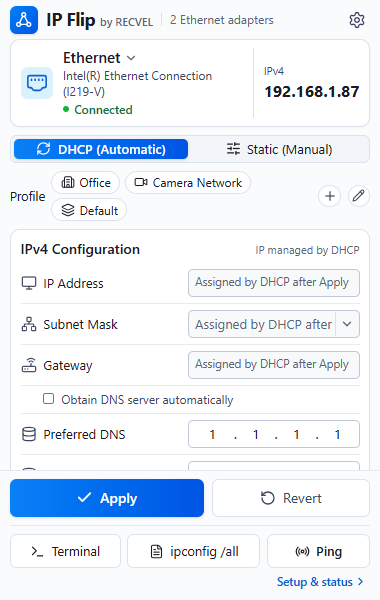
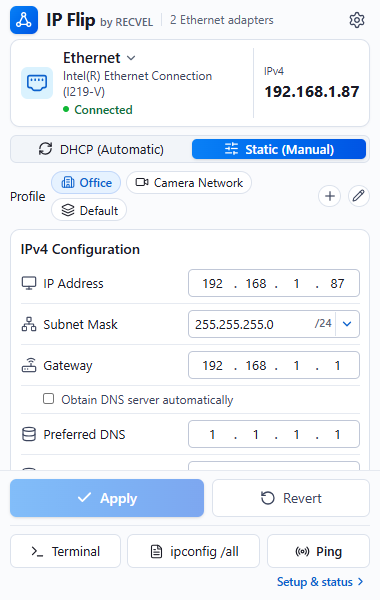
Address, gateway and DNS each get four octet boxes. The mask sits beside its prefix, and saved profiles such as Office and Camera Network wait above the form.
Quick access to Ethernet settings, profiles, and diagnostics — without digging through Windows menus.
For Windows 10 and 11. A Chrome extension with a Windows Companion on the PC.
Private alpha. Public download isn't available.
Four real screens from the extension, with demo test data. Scroll past them, or pick one.
Other views: DHCP, CIDR menu, ipconfig /all.
Address, gateway and DNS each get four octet boxes. The mask sits beside its prefix, and saved profiles such as Office and Camera Network wait above the form.
Switch to DHCP (Automatic) and the address fields say what happens next: assigned by DHCP after Apply. Nothing changes until you press it.
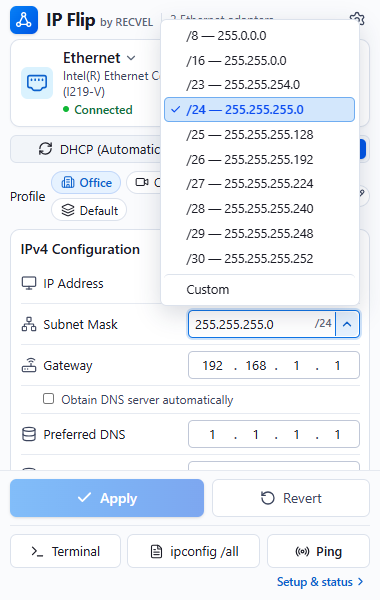
The subnet menu pairs each prefix with its dotted mask — /8, /16, and /23 through /30 — with Custom for anything else. New static drafts start at /24.
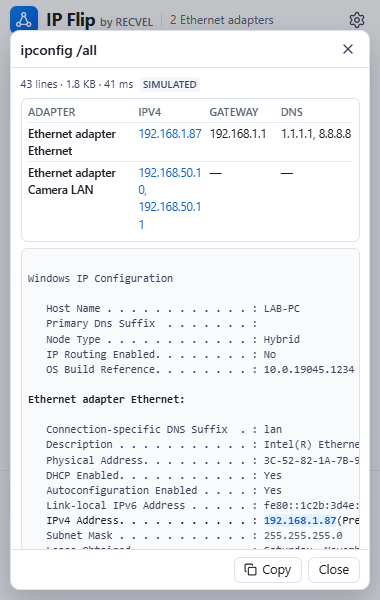
ipconfig /all without hunting.A summary of every adapter sits above the full output, and IPv4 address text is picked out in blue. Highlighting the whole address line is planned for a later release.
Captured from alpha.9’s local visual tests with simulated adapter data. Alpha.9 captures keep the earlier app icon; this website uses the approved IP Flip mark. Later builds may differ. These are images: nothing here talks to the extension, the Companion, or your adapter.
Ordinary low-voltage work. Every address below is a fictional example, not advice for any device.
Move the laptop onto the camera subnet, check that the recorder answers, and keep the profile for the next visit.
192.168.10.20/24
Reach a door controller on its own subnet while the adapter and profile stay in view.
192.168.20.20/24
Before you pack up, switch the adapter back to automatic on purpose, so the next network can hand out an address.
DHCP
A browser extension can’t change a network adapter on its own. IP Flip splits the job in two, and both halves run on your PC.
Public installation stays closed while real-hardware recovery and the Windows install and signing flow are validated. Read the release requirements.
Public download isn't available. It opens once real-hardware testing, Windows signing and the owner’s go-ahead are all in place.
Download status